

| Main Page > Browse Categories > How To / Articles > Show All |
How To / Articles |
| About Synchronization (One-Way,Two-Way), Backup and Replication |
File Synchronization (a.k.a. File Sync) is the process of ensuring that two or more locations contain the same, up-to-date, files. If you add, change, or delete a file from one location, the synchronization process will add, change, or delete the corresponding file at the other location.
Synchronization can be “two-way” or “one-way”.
Two-Way Synchronization (a.k.a. bi-directional synchronization or both-ways synchronization):
This synchronization process copies files in both directions to reconcile changes as needed. Files are expected to change in both locations. The two locations are considered equivalent.
Example: if a file is newer in Location A, it will be copied to Location B. But if a file is newer in Location B it will be copied to Location A. Similarly, if a file is deleted from Location A, it will be deleted from Location B as well and vice versa.
One-Way Synchronization (a.k.a. file mirroring / file replication / file backup):
Files are expected to change in one location only. To reconcile the changes, the synchronization process copies files only in one direction. The two locations are not considered equivalent. One location is considered the Source and the other is considered the Target. Files are pushed from Source to Target (or files are pulled from Source to Target, but always in one direction only). Source is said to be mirrored to Target.
This creates an exact 1:1 replica of all files in Source to Target. This is very useful and effective for backup purposes since only changed/new files are copied.
Example: If a file is newer in Location A (Source), it will be copied to Location B (Target). But if a file is newer in Location B, it will NOT be copied to Location A. Similarly, if a file is deleted from Location A, it will be deleted from Location B. But a file deleted in Location B is restored using the file in Location A.
 ViceVersa PRO supports several One-Way and Two-Way Synchronization methods: see List of File Synchronization, Backup and Replication Methods Supported by ViceVersa
About Visual Synchronization (Side-by-Side)
With ViceVersa you can synchronize files visually. ViceVersa will compare and analyze the files and folders in two or more locations and show you the files side-by-side, with all the changes that happened since last synchronization clearly marked. Show Me
Automatic Synchronization
File synchronization can be run automatically, without user intervention, at intervals (i.e. every 10 mins, every 2 hours, etc.), scheduled (i.e. Monday and Friday at 7:00), real-time (i.e. as soon as file changes are detected), at startup or at shutdown.
Common Synchronization Scenarios
-
Synchronization between computers connected to the local network (LAN). Computers can be laptops, desktops, workstations, servers. Selected folders across computers are shared, using Windows File Sharing, and synchronized using ViceVersa.
-
Synchronization between computers connected to the Internet (WAN). This requires a VPN tunnel. Computers can be laptops, desktops, workstation, servers. ViceVersa is used to synchronize files over VPN.
-
Synchronization between computers and external (USB) drives.ViceVersa is used to synchronize files to USB devices.
-
Synchronization between computers and NAS.ViceVersa is used to synchronize files to NAS devices.
The end-goal is to make sure that the selected folders on computers and/or drives have the same, most current files.
Synchronization Between Non-Connected Computers
For computers that are not connected to a network, synchronization can be achieved by using a portable USB drive.
If there are files on a computer at home (PC-1) that must be kept synchronized with files on a computer at work (PC-2), synchronization can be achieved by synchronizing PC-1 versus a portable USB drive and then taking the drive to work and performing the same synchronization between PC-2 and the portable USB drive.
At the end of the process the same up-to-date files will be on both PCs (and on the USB drive, useful for data backup purposes). Read More
Additional Features
ViceVersa PRO provides an extensive set of options that allow you to control and customize the synchronization process in detail. Here are some examples:
-
File Archiving. During synchronization, older files (in Source and/or in Target) are not simply overwritten with newer files. Instead, they are moved to an archive location for archiving purposes. Learn More
-
File Verification. ViceVersa calculates the CRC value of a file and compares it to the CRC value of the corresponding file in the other location. If the CRC values differ, the files differ. This ensures that files are copied properly. Learn More
-
File Encryption. ViceVersa can keep files in Source and/or Target encrypted. This is especially important when copying files to an external USB drive or over the Internet. Learn More
-
File Compression. ViceVersa can keep files in Source and/or Target compressed to save space, e.g. on a USB drive or a NAS. Learn More
-
Copy Open Files. ViceVersa can copy files even if they are open and in-use (e.g. Documents, Spreadsheets, E-Mails, Music, etc.). ViceVersa uses the Windows Volume Shadow Service for this. Details
-
Bandwidth and Processor Load Control. You can control the bandwidth used and the max processor load to prevent overloading your system while copying files. Details
- Real-Time Backup, Synchronization and Replication. ViceVersa PRO can backup, replicate and/or synchronize your files continuously, as they are being modified. Files can be saved to another location, such as another computer, a network drive, a USB drive, or even another folder on the same computer. Read More
Further Reading
Common Solutions ViceVersa Provides
Copy / Backup Open Files and Databases Using the Volume Shadow Service
VVEngine: Advanced Scheduling
| Backup / Copy / Mirror "Live" Hyper-V Machines |
*** Requires ViceVersa PRO 2.5 or any later version ***
With ViceVersa PRO you can backup, copy, mirror "live" Hyper-V machines. The Hyper-V machines do not need to be shut-down or stopped: ViceVersa PRO will use the new Windows 2008 VSS Hyper-V writer directly.
There are two ways to copy Hyper-V machines with ViceVersa PRO.
METHOD 1
With this method you specify in the source the path(s) where the machines and virtual hard disks, that are to be copied, are stored. In the target you enter the folder when the machine needs to be copied to. You then need to activate two options in the profile settings:
- Use 'Volume Shadow Copy' to copy open files. This option is in profile settings->advanced settings. ViceVersa PRO will use the Windows Volume Shadow Copy Service to copy files.
- Create Volume Shadow Copy before comparing source and target. This option is in profile settings->advanced settings->details. This is a new option. By default ViceVersa PRO creates Volume Shadow Copies after having compared source and target and just before file copying starts. With this option you can instruct ViceVersa to create the volume shadow copy before source/target comparison. This is necessary for copying files such as Hyper-V machines and SQL/Oracle databases, because the file timestamps for these files are only updated during Shadow Copy creation by their respective VSS writers. Without this option, the timestamps would not be updated and the files would not be copied. Note that this option is not available with the Synchronization method, but it can be used with all other execution methods (that's because a Volume Shadow Copy is read-only).
You then compare source and target and execute the profile normally.
METHOD 2
With this method, you use the new vss:\\ notation directly in the source path and select the VSS Hyper-V writer, or even a specific Hyper-V machine to copy. ViceVersa PRO will select automatically all the files part of that machine for you, including virtual machines configuration files, snapshots, and virtual hard disks. In the target path, you enter the folder where the machine files need to be copied to.
Watch the Video for METHOD 2:
Detailed information is available in this PDF document: BACKING-UP HYPER-V VIRTUAL MACHINES WITH VICEVERSA PRO
| Backup Software for Professionals |
ViceVersa is designed to make backup of your data fast and easy.
Backups are essential for all data. To "backup files" is to make copies of files (replication/mirroring) and store them on a separate media to be used in case the primary files are lost or corrupted. It means that your files are safe and secure. You never know when your hard disk may crash or be attacked by a virus. You can feel secure knowing that ViceVersa has made a backup copy of all your data to a secondary location.
With ViceVersa, you choose where you want to backup your data to. You can backup your data to different types of media such as a USB drives, external hard drives, to the LAN/network, to NAS, to CD/DVD, etc. Backup files can be stored compressed to save space and/or encrypted for security reasons, especially when the backup files are stored on portable hard disks.
ViceVersa PRO makes backup easy by allowing you to create ‘profiles’ (descriptions of what and where you want to back up your data to). You can schedule backups to run hourly, daily, weekly, it is up to you.
Where older backup tools took hours to backup data, ViceVersa makes backup of your files and folders fast because it detects and copies only those that have changed from the last backup. And with the innovative ViceVersa comparison window, you can clearly see which files have changed, which have been deleted etc.
The PRO version of the ViceVersa software offers a vaste array of options for advanced users: you can control bandwidth and amount of CPU used by the backup process, you can copy files even if they are in use (e.g. Outlook files, Quicken files, SQL/database files, etc.), you can verify file's CRC values after copying to make sure your backup fils are integer, you can run custom scripts before and after the backup opration, you can keep multiple version of backup files (file archiving), run ViceVersa as a service on a server or on a client.
ViceVersa PRO is the perfect backup solution for all users. From single users to corporations, ViceVersa makes securing your data easy, fast and reliable.
| Backup, Replication Over Slow Connections (e.g. VPN, LAN, Network) with No Rescan |
*** Requires ViceVersa PRO 2.5 build 2504 or any later version ***
When backing up files or replicating files over slow connections (such a VPN tunnel or a LAN), a major bottleneck is the re-scanning of the files over the slow side that needs to be done each time the profile runs.
The backup / replication is usually setup between a fast source (the local disk) and a slow target (the folder reachable over the network, VPN, LAN) or from a slow source to a fast target. If the number of files to scan is significant, the ViceVersa profile may spend most of its time performing the scanning of the slow side, rather than copying files. This may be impractical.
To work-around this issue, and to speed up the file comparison/scanning phase, we introduced a new feature in ViceVersa PRO 2.5 build 2504. The new feature is called "no rescan".
When this feature is activated, source or target folders (the slow folders) are only scanned the first time the profile runs or if a certain custom condition is true.
After the first run, ViceVersa assumes that the files in the slow folders have not changed since the last execution and their content is loaded from the tracking database instead.
This significantly speeds-up the comparison and the overall backup process.
How to use the new "No Rescan" options:
The No Rescan options are located in profile settings -> performance / bandwidth. The following options are available:
Do Not Rescan (Source or Target): This option instructs ViceVersa not to rescan the source or the target folders each time. If the source is the slow side (e.g. VPN, LAN, Network folder), set this option to Source. If the target is the slow side, set this option to Target.
When this option is activated, selected folders are only scanned the first time the profile is run or if the rescan condition is true. After the first run, ViceVersa assumes that the files in the folders selected not to be rescanned have not changed since the last execution and their content is loaded from the tracking database instead. Therefore this option requires the tracking database to be enabled (ViceVersa will set one up automatically).
Rescan every X hours : Instructs ViceVersa to perform a full rescan and refresh the file list stored in the tracking database for the slow side every X hours (enter 0 to ignore). Use this option to rescan the slow folders occasionally to make sure no changes have occurred to them, outside ViceVersa, since the last scan.
Rescan if the following condition is true (Rescan Condition): Instructs ViceVersa to perform a new full rescan if the specified condition is true (leave condition blank to ignore). Operators =, <> (not equal), OR, AND, > (greater than), < (smaller than), >= (greater than or equal), <= (smaller than or equal) are supported.
The following variables can be used in the rescan condition:
|
Rescan Condition Variable |
Explanation |
Rescan Condition Examples |
|
dayofweek |
Day of the week (1 = Sunday, 2 = Monday, to 7 = Saturday) |
dayofweek = 1 (performs a rescan on Sundays). |
|
day |
The day of the month, in the range 1 through 31 |
day = 15 OR dayofweek = 1 (performs a rescan on Sundays and on the 15 of every month). |
|
hour |
The current hour, in the range 0 through 23 |
hour >= 0 AND hour <= 7 (performs a rescan between midnight and 7:59 am). |
|
minute |
The current minute, in the range 0 through 59 |
minute > 30 (performs a rescan in the second half of each hour). |
|
month |
The month of the year, in the range 1 through 12 (1 = January, 12 = December) |
month = 1 (performs a rescan in January). |
|
year |
The year, 1970 to 2038 |
year <> 2012 (performs a rescan if the current year is not 2012). |
|
elapsed_days |
The number of days that have passed since the last rescan |
elapsed_days > 7 (performs a rescan if the number of days that have passed since the last rescan is greater than 7. Equivalent to every 7 days). |
|
elapsed_hours |
The number of hours that have passed since the last rescan |
elapsed_hours > 4 (performs a rescan if the number of hours that have passed since the last rescan is greater than 4. Equivalent to every 4 hours). |
|
elapsed_minutes |
The number of minutes that have passed since the last rescan |
elapsed_minutes > 30 (performs a rescan if the number of minutes that have passed since the last rescan is greater than 30. Equivalent to every 30 minutes). |
By using the rescan condition, a rescan can be setup to happen periodically and automatically, for example weekly or overnight.
Other ways to force a rescan:
Beside instructing ViceVersa to perform a full rescan automatically every X hours or when a certain condition is true, a full rescan can also be "forced" in the following manner:
- Manually from the ViceVersa main window, by selecting "Compare with Rescan" or "Compare and Execute with Rescan" (see screen-shot below). Note that these two additional commands are only shown when the option "Do not rescan" is activated in the profile settings.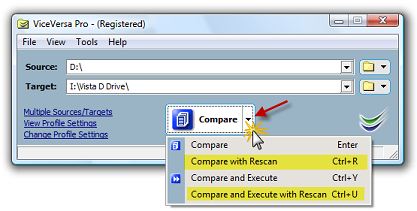
- From the command line using the /rescan flag.
- Manually from VVEngine, by clicking on "Run with Rescan" (requires VVEngine 2.0 build 2.003 or newer). This additional command is only shown in VVEngine when the option "Do not rescan" is activated in the ViceVersa profile settings.
| Bandwidth and Processor Load Control in ViceVersa |
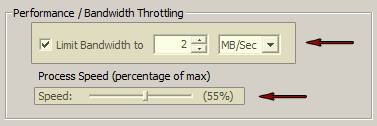
In ViceVersa PRO you can easily control the Bandwidth used and the Processor Load to prevent overloading your system while copying files.
The Bandwidth that ViceVersa PRO uses while copying files can be set as a MB/Sec or KB/Sec max value.
The Processor Load can be set as a percentage of the max CPU speed available.
By using these settings you can setup ViceVersa PRO to work transparently without any impact on the resources of your system.
| Best Way to Sync Files Between 3 Computers (PCs or Servers) |
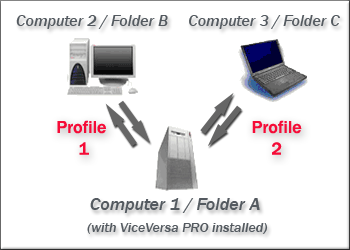
Given 3 folders on 3 computers (PCs or Servers):
- Computer 1 with Folder A
- Computer 2 with Folder B
- Computer 3 with Folder C
What is the best way to synchronize files between them, using ViceVersa PRO?
The easiest way is to install ViceVersa PRO on one computer (e.g. Computer 1) and setup two ViceVersa profiles, Profile 1 and Profile 2:
Profile 1 synchronizes Folder A on Computer 1 vs. Folder B on Computer 2
Profile 2 synchronizes Folder A on Computer 1 vs. Folder C on Computer 3
Both profiles use the "Synchronization" method.
This setup makes sure that if a file is added or changed at any of the 3 locations, the file will be copied to the other 2 locations.
For example, if a file is added to Folder B on Computer 2, it will be copied to Folder A on Computer 1 by Profile 1. It will then be copied from Folder A on Computer 1 to Folder C on Computer 3 by Profile 2.
Instead, if a file is removed from Folder B on Computer 2, it will be removed from Folder A on Computer 1 by Profile 1. It will then be removed also from Folder C on Computer 3 by Profile 2.
Profile 1 and Profile 2 can be scheduled to run every X minutes, using the VVEngine add-on or VVScheduler (included in the ViceVersa PRO software). The advantage of using VVEngine is that it can run as a service on Windows Servers and it can run profiles sequentially, one after the other.
Note about Real-Time Synchronization
To run the synchronization between the 3 computers in 'real-time' (i.e. not simply scheduled every X minutes, but as soon as file changes are detected), the VVEngine add-on needs to be able monitor file changes on all 3 computers. But it is not always possible to monitor files at remote locations (it depends on the network topology). VVEngine may report an error when trying to monitor a folder on a remote machine (e.g. trying to monitor Folder B on Computer 2 or Folder C on Computer 3 from Computer 1). In this case, VVEngine must be installed locally, on each machine, and 4 ViceVersa profiles must be setup:
Profile 1 on Computer 1 synchronizes Folder A on Computer 1 vs. Folder B on Computer 2. VVEngine monitors source Folder A for file changes.
Profile 2 on Computer 2 synchronizes Folder B on Computer 2 vs. Folder A on Computer 1. VVEngine monitors source Folder B for file changes.
Profile 3 on Computer 1 synchronizes Folder A on Computer 1 vs. Folder C on Computer 3. VVEngine monitors source Folder A for file changes.
Profile 4 on Computer 3 synchronizes Folder C on Computer 3 vs. Folder A on Computer 1. VVEngine monitors source Folder C for file changes.
This setup is only needed to achieve real-time synchronization.
| Common Solutions ViceVersa Provides |
Solutions for Desktop / Laptop
- Keep files and folders in sync between computers. This enables you to work with files on either computer and always be sure you are working with the latest version.
- Create backup replicas of your files to another computer or to a second hard-disk, external hard-disk, USB flash drive, DVD-RW and CD-RW. ViceVersa only copies files that have changed since last run, so backups are really fast. Restore are also very fast and easy, because ViceVersa creates an exact replica of your folders' structures. ViceVersa can also compress and encrypt files for saving disk space and data security on any media, and can keep several former versions of files, using a feature called 'file archiving'.
- Create backup replicas of your files to a network folder, over LAN or VPN.
- "Subscribe" to a network folder, so that the network folder content is "pushed" to your computer every time you run ViceVersa.
- Synchronize several computers against one master network folder. This enables a team to share the same set of files.
Solutions for Servers
- Disk-to-Disk file server backup.
- Backup Exchange and SQL Database.
- Pulling files to a server from workstations. (LAN, VPN)
- Pushing files from a server to workstations. (LAN, VPN)
- Web Server mirroring, aka "Web Farms", i.e. a number of servers providing identical HTML pages to web-users. The web-users' connections are distributed across all the servers (which need to have identical content) for optimized load balance.
Solutions for Data Verification
-
Compare files in two locations to make sure both locations are identical, bit-by-bit. For example, verifying that data stored on a media such as DVD or CD is identical bit-by-bit to the source.
-
Create a snapshot of a folder containing information on folder structure, file timestamps and file CRC, and then later on make sure that the snapshot is still identical to the live folder, which guarantees that the folder content has not changed. Snapshots can be added to DVDs and CDs to periodically verify their integrity.
Solutions for File Compare
-
Visually compare files in two or more locations and see what files have been changed, deleted or added. A unique side-by-side hierarchical view makes it very easy to spot differences.
-
You can use ViceVersa to compare source code, compare program output and validate copies of your files.
-
Use ViceVersa in combination with CompareAndMerge for the ultimate file compare solution.
See also: Network Backup, File Synchronization, Backup and Replication Methods Supported by ViceVersa, About Synchronization (One-Way,Two-Way), Backup and Replication
| Copy / Backup Open Files and Databases Using the Volume Shadow Service |
Now you can copy and backup open files and databases with ViceVersa PRO. This includes Outlook files, Quicken databases, open SQL databases, documents, etc. ViceVersa PRO is now fully integrated with the Volume Shadow Service (VSS) on Windows XP (all editions), Windows Server 2003 (all editions), Windows Server 2008 (all editions), Windows Server 2012 / 2016 / 2019 / 2022 (all editions), Windows Vista (all editions), Windows 7 (all editions), Windows 8 / 8.1 (all editions) and Windows 10 / 11 (all editions).
You can activate VSS under Profile Settings->Advanced Settings.
How It Works
-
Before starting a new file copy operation ViceVersa calls the Volume Shadow Service (VSS) and requests the creation of a Volume (=Disk) Shadow Copy for the files to be copied. This is not a full copy of the entire disk, but a differential copy. Hence, its creation will take only a few seconds.
-
Once the Volume Shadow Copy is available, ViceVersa uses it to access the files to be copied.
-
Finally, ViceVersa releases the Volume Shadow Copy.
Advantages
-
By using the Volume Shadow Copy ViceVersa can access and copy files even when they are open, locked or in-use.
-
You can change and work on your files while ViceVersa is copying them. ViceVersa uses the Shadow Copy to access the files, so it will never interfere with your work.
Disadvantages
-
It takes a few seconds to create the Volume Shadow Copy before file copying can start. However, you can set ViceVersa to create the shadow copy only if there are in-use / locked files.
Limitations
-
Works on Windows XP, Windows Server 2003 (all editions), Windows Server 2008 (all editions), Windows Server 2012 / 2016 / 2019 / 2022 (all editions), Windows Vista (all editions), Windows 7 (all editions), Windows 8 / 8.1 / 10 / 11 (all editions) or newer.
-
At least one NTFS volume needs to be present locally.
-
The file being copied must be on a local disk, not on a network disk.
-
The account running ViceVersa must have administrator access rights or backup privileges (e.g. member of the Backup Operators group).
-
On Windows 11, 10, 8.1, 8, 7, Vista, Windows Server 2008, 2012, 2016, 2019, 2022 or newer, if User Account Control is enabled, ViceVersa must be running with elevated privileges (i.e. use the Windows 'Run as Administrator' command). When running from VVScheduler, VVLauncher or VVEngine, they must be running with elevated privileges.
-
Volume Shadow Copies are not possible for CD/DVDs.
Trouble-shooting
-
If you get the message "Can not create shadow copy, access is denied", it is most likely that the account running ViceVersa PRO does not have backup / restore privileges and cannot create shadow copies. On Windows Vista, 7, 8, 8.1, 10, 11, Windows Server 2008, 2012, 2016, 2019, 2022 or newer, ViceVersa PRO must be running with elevated privileges (i.e. use the Windows 'Run as Administrator' command) to use the Volume Shadow Copy feature. When running from VVScheduler, VVLauncher or VVEngine, they must be running with elevated privileges.
-
Make sure that the Windows Shadow Service is enabled (normally it is already enabled in default installations) or ViceVersa will report an error.
Note: This new feature is integrated in ViceVersa PRO 2 or later. It can be activated in the profile settings. It does not require any additional plug-ins.
| Copy Only New or Changed Files |
I want to copy files and folders from one drive or folder to another drive or folder. However I do not want to copy every file and overwrite existing ones. I just want to copy new or changed files. Will ViceVersa do that?
Yes, ViceVersa will do that automatically. Once you indicate a source and a target folder and then click on "compare", ViceVersa will compare the files and subfolders and show you which files are newer / older / changed. You can then let ViceVersa copy only the new or changed files, saving a lot of time.
| Download and Install ViceVersa |
To install ViceVersa, follow these steps:
- Download the installer file
- If prompted, click "Run" or "Save".
- If you have saved the installer, double-click the installer file to start the installation process.
System Requirements: Windows. details
Notes on the ViceVersa installation:
- ViceVersa does not make any system-wide changes, does not impact or change any other programs or features running on your system.
- For your security, the ViceVersa executable file is digitally signed by TGRMN Software.
- ViceVersa does not collect or transmit any private information.
- ViceVersa is not bundled with any other third-party software.
- ViceVersa does not depend on any other third-party software or library to run and does not require any special hardware to run: if you run Windows you can run ViceVersa too.
- If needed ViceVersa can be removed easily and cleanly from your system, see: Uninstall ViceVersa.
| File and Folder Synchronization with ViceVersa: Benefits |
ViceVersa is a File and Folder Synchronization Tool for Windows. It allows two replicas of files and folders to be stored on different computers or on different disks and media, to be modified separately, and then synchronized, by applying the latest changes in each replica to the other.
Distinctive File and Folder Synchronization Features and Benefits:
- Unlike simple synchronization and mirroring utilities, ViceVersa will deal with changes to both sides (Source and Target) and implement bi-directional synchronization. Files that are not in conflict are copied automatically, conflicting files are detected and displayed.
- Unlike the vast majority of file synchronizers, ViceVersa will visually show changes to Source(s) and Target(s) in a side-by-side, easy to understand display and preview. No more running jobs blindly. And on top of that ViceVersa can also perform synchronization at scheduled times, real-time as soon as changes are detected, at log-on or at log-off.
- Unlike the vast majority of file synchronizers, the ViceVersa file synchronization process is resistant to failure. If connection between Source (s) and Target(s) is lost at any point during synchronization, files will be left in a valid status. We validate this constantly with our "pull-the-plug" test, your data is 100% secure.
- ViceVersa supports encryption and compression of Source(s) and Target(s). A key feature when data needs to be carried or stored remotely. Your data is 100% protected.
- ViceVersa allows users to control total bandwidth and CPU utilization during synchronization. ViceVersa runs in the background silently, you will not notice any performance degradation.
- ViceVersa supports file archiving and file versioning. Instead of removing older files from disk, they can be stored in a separate location for a period of time. Your data is 100% safe from accidental deletion.
File Synchronization Common Uses:
- You use more than one computer and want to keep the same set of files on all computers. Computers can be connected via a LAN, a serial cable, over VPN (Virtual Private Network), with Bluetooth dongles or using a intermediary media (e.g. USB disks and USB memory keys).
- You work in a team and share some files and folders. You can use file synchronization to get and put the latest versions of the documents you are sharing with your team and make them available offline.
- Continuous synchronization of two or more servers to provide load balancing and fail-over: files need to be the same on each server and when one file is updated, it needs to be copied to all other servers.
Keywords: File Synchronization Software, Folder Synchronization Software, Folder Sync, File Sync, Synchronize Files, Synchronize Folders
| File Replication (File Mirroring) with ViceVersa: Benefits |
ViceVersa is a File Replication and File Mirroring Tool for Windows. ViceVersa is designed to replicate a collection of files or folders from one location (=Source(s)), to another (=Target(s)). During each replication, ViceVersa will only copy files that have changed since last time, saving a considerable amount of time.
Distinctive File Replication Features and Benefits:
- When required, ViceVersa will show changes to Source(s) and Target(s) in a side-by-side, easy to understand display. No more running of jobs blindly.
- The ViceVersa replication process is resilient to failure. If the connection between Source (s) and Target(s) is lost at any point during replication, files will be left in a valid status. We validate this constantly with our "pull-the-plug" test. Your data is 100% protected.
- ViceVersa supports encryption and compression of Source(s) and/or Target(s). A necessary feature when data needs to be moved over the web or replicated remotely. Your data is 100% safe.
- ViceVersa allows users to control the bandwidth and the CPU power to be utilized during replication. ViceVersa silently runs in the background. You will not notice any performance degradation.
- ViceVersa supports file archiving and file versioning. Instead of removing older files from disk, they can be moved to a separate location for a period of time. Your data is 100% protected from accidental deletion.
- Successful file copy can be verified using CRC, which compares files bit-by-bit.
- NTFS file and folder permissions can also be replicated.
- Variable Path Selection inserts variables into the source or target path to create unique replications based on these variables.
- Replication can occur on demand, scheduled, as soon as file changes are detected, at log-on or at log-off.
- Replication can be performed as a Windows Service.
File Replication Common Uses:
- Continuous file backup and file mirroring to a separate location, such as to a network hard disk, a NAS, CD-RW, LAN, another PC, server or storage device.
- Server backup to another server.
- Continuous one-to-one or one-to-many replication of two or more servers to provide load balancing and fail-over. Files need to be the same on each server and when one file is updated, it needs to be pushed to all other servers.
- Distribution of files from a server to workstations / laptops (push).
- Backup of workstations / laptops to a server (pull).
Keywords: File Replication, File Mirroring, Replicate Files, Replicate Folders, Mirror Folders, Mirror Directory
| File Replication / File Synchronization and the impact of Ransomware |
Problem
Certain types of malicious software, called Ransomware, encrypt a victim's files, making them inaccessible, and then demand a ransom payment to decrypt them. Ransomware attacks are typically carried out using a Trojan that is disguised as a legitimate file that the user is tricked into downloading or opening when it arrives as an email attachment. However, one high-profile example, the "WannaCry worm", propagated automatically between computers over the network without user interaction, using an exploit of the Windows' Server Message Block (SMB) protocol that was sub-sequentially fixed.
Ransomware typically encrypts files and renames them too, usually by changing their file extension, but not always. There are types of Ransomware which do not change file names or extensions. The file size usually does change as the file content is encrypted. This creates some issues for file replication and synchronization when the encrypted files are replicated and/or synchronized.
There are two main scenarios:
a) The Ransomware does change file names or extensions. The file replication or synchronization process will copy the new renamed files and, depending on other profile settings, might delete the old ‘good’ files.
b) The Ransomware does NOT change file names or extensions but only the file contents. The replication or synchronization process will consider these as changed files and copy them over the old files.
In both scenarios, there are issues that the Ransomware will create to the file replication and synchronization process.
Mitigation of the issues
Possible mitigating steps include:
1. If file replication is used for backup purposes, it is recommended to use a rotating target, e.g. use a different target every day of the week (see Folder Variables in ViceVersa PRO which can change automatically the target path of the profile based on day of the week and other variables). Also it would be best if the replicated data is kept offline / archived when not in-use. For example, replicating to a different removable disk each day or each week, and disconnecting the disk when not in use. Additionally, files should be replicated frequently and in real-time if possible so that even very recent files have a good replica.
2. Enable the file archiving feature of ViceVersa. When file archiving is enabled in the profile settings, files are not simply overwritten or deleted, instead they are moved to an archive folder from which they can be restored if needed.
3. Use the two profile options “Max. files/folders to delete, do not execute if more” and “Max. files/folders to update (=overwrite), do not execute if more”. When these options are used, replication or synchronization will stop, should it result in more than X files/folders updated or deleted and return an error. No files at all will be copied or deleted and execution is aborted before the copy/delete process even starts. The amount can be specified as a number, for example 100, or as percentage, for example 10%. These two options can be useful because Ransomware usually encrypts many files in a short period of time and in this case the replication / synchronization will not run at all and the unencrypted files in the target will be safe guarded.
Conclusion
File replication and synchronization can be impacted by Ransomware as the encrypted files are replicated / synchronized and the good unencrypted files might be deleted or replaced with the bad copies. There are mitigating steps that can be taken in ViceVersa to reduce the impact of Ransomware on file replication and synchronization.
| How Does Scan Acceleration Work? |
Scan Acceleration is a new feature available since ViceVersa PRO version 5.
With Scan Acceleration, you can speed up the folder scanning phase of a profile significantly in certain scenarios. The scanning phase is when all the information is collected from Source and Target folder(s) to initiate the comparison and then to work out which files or folder need to be copied, based on their attributes / timestamps and based on the selected execution method in ViceVersa.
It can take a significant amount of time to scan all files - if there are a lot of files to scan. Scan Acceleration can make that a lot faster, up to 10 times faster, in some cases.
How Scan Acceleration Works
Scan Acceleration builds an index of the drive before the actual scanning occurs. The index will make the scanning faster. The index is kept in memory during the scanning phase, and it is then deleted once done.
Requirements to Use Scan Acceleration
To use Scan Acceleration, the following requirements must be met:
1. ViceVersa must be running by a user with Administrative Privileges ("as Administrator"). Some USB drives can be indexed without Administrative Privileges, but generally Administrative Privileges are required. VVEngine and VVLauncher always run with Administrative Privileges. To run ViceVersa as administrator, right-click on the ViceVersa icon / program and select "Run as Administrator".
2. The drive to be indexed must be a Local Drive, e.g. an internal HDD, SSD or an external drive (USB, etc.). Drives over the network, cloud, or mapped drives are not supported for Scan Acceleration.
3. The drive must be formatted as NTFS. This is the default file system on Windows. HFS, FAT, exFAT, EXT and all other file system types cannot be indexed, so Scan Acceleration will not be possible. In ViceVersa select View->Drive Information from the main menu to view the file system of each drive that is present on the system.
How to Enable Scan Acceleration
The Drive Indexing / Scan Acceleration option is in Profile Settings->Folders in ViceVersa. Click on the link 'Set Drive Indexing Options (Scan Acceleration)'. A dialog box will open where you can enable Scan Acceleration for Source, for Target or for both. When you then run the profile, ViceVersa will use Scan Acceleration for Source, Target or both as specified. If Scan Acceleration cannot be used, because the drive does not support it, ViceVersa will advise with a warning. If multiple folders in the
same profile are all on the same drive, the drive will be indexed only once.
Scan Acceleration and Volume Shadow Copies
Scan Acceleration can also be used with Volume Shadow Copies. If you are using the option "Use 'Volume Shadow Copy' to copy open files" in Profile Settings -> Advanced Settings, then you can enable Scan Acceleration.
Scan Acceleration Use Cases
- Accelerate mirror / sync / replication of files between two USB drives (both formatted as NTFS)
- Accelerate mirror / sync / replication of files between two local HDD / SDD or from HDD / SDD to or from USB drive (all formatted as NTFS)
- Accelerate mirror / sync / replication of files between local HDD / SDD / USB drive to network path (scan acceleration enabled for local drive formatted as NTFS)
- Accelerate mirror / sync / replication of files between HDD / SDD / NAS (all formatted as NTFS)
| How to Check the SMB Version of Your Network Connection |
There are several different versions (or dialects) of the SMB protocol that were introduced with different versions of Windows:
SMB 1 - Windows 2000
SMB 2 - Windows Server 2008 and Windows Vista SP1
SMB 2.1 - Windows Server 2008 R2 and Windows 7
SMB 3.0 - Windows Server 2012 and Windows 8
The version of SMB used between two computers will be the highest dialect supported by both.
This means if a Windows 8 machine is talking to a Windows 8 or Windows Server 2012 machine, it will use SMB 3.0. If a Windows 10 machine is talking to Windows Server 2008 R2, then the highest common level is SMB 2.1.
To check which SMB version is being used over a connection between two computers, run the following PowerShell command:
Get-SmbConnection
which will show the SMB connections and the dialect that is being used.
PS C:\Windows\system32> Get-SmbConnection
ServerName ShareName UserName Credential Dialect NumOpens
---------- --------- -------- ---------- ------- --------
ser08r2 c$ SAVILLTEC... SAVILLTEC... 2.10 1
serv01 c$ SAVILLTEC... SAVILLTEC... 3.00 1
ser2016 softsh SAVILLTEC... SAVILLTEC... 3.00 1
To check if encryption is enabled or not over a connection you can use this command:
PS C:\Users\Administrator> Get-SmbConnection | Select-Object -Property *
ContinuouslyAvailable : False
Credential : domain\administrator
Dialect : 3.00
Encrypted : False
NumOpens : 3
ServerName : server1
ShareName : test
UserName : SERVER1\Administrator
PSComputerName :
CimClass : ROOT/Microsoft/Windows/SMB:MSFT_SmbConnection
CimInstanceProperties : {ContinuouslyAvailable, Credential, Dialect, Encrypted...}
CimSystemProperties : Microsoft.Management.Infrastructure.CimSystemProperties
Once you know a connection to a share in SMB3 is encrypted you know all traffic will be encrypted between the two computers over that share, including ViceVersa and VVEngine. There are no special settings needed in ViceVersa or VVEngine.
| How To Copy / Replicate Just the Folder Structure Without Files |
To copy just the folder structure between two locations without any files, for example from folder c:\source to folder d:\target\, create a ViceVersa profile with :
Source: c:\source
Target: c:\target
Include Subfolders: Yes
File Filter: Exclude * (this filter will exclude all files)
Subfolder Filter: Include ** (this filter will force inclusion of all subfolders)
Execution Method: Replication (Update Target)
Note that by default ViceVersa PRO automatically excludes all subfolders that contain only excluded files. For example, if a subfolder contains 5 documents, which have file extension .doc, and the profile settings exclude all files with extension .doc , then ViceVersa PRO will exclude the subfolder X too, automatically. But this default behavior can be overridden by adding an include subfolder "**" as the first subfolder filter (double *, without surrounding ") as shown above. With this special filter, subfolders containing only excluded files will not be excluded and the replication will be able to just copy the folder structure without the files inside.
| How to Copy Share Information between Servers |
ViceVersa PRO has an option in the profile settings to copy, mirror, check and also verify all files and folders, with their associated NTFS permissions, from a Source folder on a server to a Target folder on another server.
Once the data copy is done and all files and subfolders with their permissions have been mirrored and verified to be matching, network folder share information might needed to be applied from the Source server to the Target server.
However, the share information is actually stored in the Windows Registry not on files or folders. To copy share information from a server to another server, a key in the Windows Registry needs to be exported and imported in the new server.
The simple method below will show you how to copy all the shares and share security from one server to another. It involves exporting a Windows Registry key to a file and then importing this file into the new server.
If possible, try to keep the drive letter the same on your new server compared to where the shares were on your old server. If you cannot, this can be changed later with an extra step.
Step 1
On your old server, export the following Windows Registry key to a file using the program Regedit.
HKEY_LOCAL_MACHINE>SYSTEM>CurrentControlSet>
Services>LanmanServer>Shares
This registry key lists all the shares that are present. Right click the Shares key and select “Export” in Regedit. Give it any name you like and save it to an area accessible from your new server.
Step 2
Now go to your new server and right click the registry file you have exported in Step 1 and select “Merge”. All the share information will be imported in your new server. If the new server uses the same drive letter, then just restart the server (or you can start and stop the Server service: enter Net Stop Server and then Net Start Server at the command prompt).
Step 3
If the drive on the new server where the Shares are has a different drive letter compared to the old server, then you need to do the following. On the new server, navigate to the same key using Regedit:
HKEY_LOCAL_MACHINE>SYSTEM>CurrentControlSet>
Services>LanmanServer>Shares
Now on the right hand side you can see the Shares. To change the drive letter of a share simply double click the share in question and then locate the section labelled “path” and change the drive letter to the drive letter of your new file server.
You will need to do this for each share that needs a change of drive location. Once completed, you will just need to restart the server again.
| How to Setup and Use a GMAIL or OUTLOOK Account for ViceVersa E-Mail Notifications |
Information on how to setup and use a GMAIL or OUTLOOK account for ViceVersa E-Mail Notifications: How to Setup and Use a GMAIL or OUTLOOK Account for ViceVersa E-Mail Notifications.pdf
| How to Shutdown Windows Automatically After a ViceVersa Profile Has Run |
- Create a file called “run_and_shutdown.bat” on the desktop. This type of file is a batch file. You can use any file name, but the file extension needs to be '.bat'
- Open the file with Notepad.exe and edit the file.
- Add the following 2 lines:
Start "ViceVersa" /b /wait "C:\Program Files\ViceVersa Pro\ViceVersa.exe" "C:\Users\Administrator\Documents\ViceVersa PRO\profile1.fsf" /autoexec /autoclose (from 'Start' to '/autoclose' all on the same line)
shutdown /s
where:
-
C:\Program Files\ViceVersa Pro\ViceVersa.exe is the path of ViceVersa.exe
-
C:\Users\Administrator\Documents\ViceVersa PRO\profile1.fsf is the path of the ViceVersa profile you want to run automatically.
- Save the file.
Double-clicking on the newly created batch file will start ViceVersa and run the profile. When finished Windows will shutdown.
Notes:
The /autoexec and /autoclose flags instruct ViceVersa to automatically run the profile and close. Additional ViceVersa command line options are explained in the ViceVersa help file.
The Windows shutdown command 'shutdown' also supports additional options that are listed by typing shutdown /? on the windows command line prompt.
| List of File Synchronization, Backup and Replication Methods Supported by ViceVersa |
ViceVersa supports the following Synchronization, Backup and Replication methods:
Synchronization (Bidirectional) - ViceVersa PRO only
This method performs a two-way file synchronization between Source and Target. New and updated files are copied both ways. Renames and deletes on either side are repeated on the other. Details:
* All new files/ folders added to Source (single files) are copied to Target
* All new files/folders added to Target (single files) are copied to Source
* All deleted files/folders in Source are deleted from Target
* All deleted files/folders in Target are deleted from Source
* All updated files in Source (newer) are copied over older files in Target
* All updated files in Target (newer) are copied over older files in Source
N.B.: If a file changes both in Source and in Target, the file is in conflict. Conflict files need to be reconciled manually or optionally they can be synchronized automatically with the older file renamed with a timestamp.
Backup (Mirror Source to Target)
This method will backup Source to Target by creating a mirror/replica of the Source to the Target. New and updated files are copied from Source to Target. Renames and deletes from the Source are repeated to the Target. Details:
* All new files/folders added to Source (single files) are copied to Target
* All deleted files/folders in Source are deleted from Target
* All updated files in Source (newer) are copied to Target
Replication (Augment)
* All new files/folders added to Source (single files) are copied to Target
Replication (Refresh)
* All updated files in Source (newer) are copied to Target (older)
Replication (Update)
* All updated files in Source (newer) are copied to Target (older)
N.B.: Files deleted in Source are NOT deleted from Target. This is different from the Backup method.
Optionally files can be moved to Target, that is, deleted from Source after copying to Target.
Consolidation
This method performs consolidation between Source and Target. This method does not keep track of file conflicts or file deletions.
* All new files/ folders added to Source (single files) are copied to Target
* All new files/folders added to Target (single files) are copied to Source
* All deleted files/folders in Source are copied back from Target
* All deleted files/folders in Target are copied back from Source
* All updated files in Source (newer) are copied over older files in Target
* All updated files in Target (newer) are copied over older files in Source
| Network Backup |
It is easy to backup files and folders with ViceVersa for users on a computer network. It is a fast and reliable backup solution whether it is for two users or thousands of users. It is perfect for home users who work in a network environment and for companies with many users whose data they want to secure.
ViceVersa can backup multiple users data or ‘profiles’ (name you give to the descriptions of what and where you want to back up your data to) that are connected to the network at the same time.
Key Features:
-
Copy files between two or more locations on the network very quickly, only files that have changed since last backup are copied
-
Copy open files and locked databases using Volume Shadow Copy
-
Schedule ViceVersa to run unattended, as soon as file changes are detected, at start-up and shut-down
-
No limit on data size or file size
-
Run custom scripts before / after network backup
Retry on network error(s)
-
Encryption, compression, bandwidth control, archiving, password protection, CRC verification, file permissions and much more! View Complete List of Features
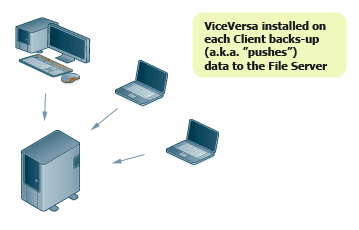
Backup from Clients to a File Server over the Network
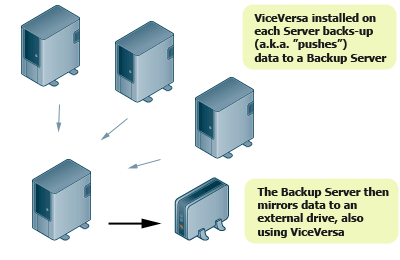
Backup from Servers to a Backup Server over the Network and then to an External Hard Drive
ViceVersa is the perfect network backup solution for users on a computer network whether that be two users or thousands of users. For corporate licensing enquiries, please contact sales@tgrmn.com
| Processing a Large Amount of Files Using Multiple Profiles |
*** Requires ViceVersa PRO 3 or any later version ***
When processing a large amount of files (e.g. more than one million files) it is recommended to enable the profile settings option "Minimize Memory Usage" and also setup multiple profiles. Using multiple profiles makes the data more manageable and uses less memory.Subfolder filters (and/or file filters as needed) help select which subfolders to include in which profile.
*** Example 1 (split into 2 profiles) ***
Need to Replicate, Backup or Sync:
----------------------------------
Source: c:\SourceFolder\
Target: X:\TargetFolder\
Profile A
---------
Source: c:\SourceFolder\
Target: X:\TargetFolder\
Include Subfolder Filter \[a-n]* - Case Sensitive: No
(This filter includes only all level-1 subfolders with names starting with a to n)
Profile B
---------
Source: c:\SourceFolder\
Target: X:\TargetFolder\
Exclude Subfolder Filter \[a-n]* - Case Sensitive: No
(This filter excludes all level-1 subfolders with names starting with a to n)
Profile A + Profile B combined will replicate / backup / sync all files from c:\SourceFolder\ to X:\TargetFolder\
Profiles can be run sequentially using VVEngine.
*** Example 2 (split into 3 profiles) ***
Need to Replicate, Backup or Sync:
----------------------------------
Source: c:\SourceFolder\
Target: X:\TargetFolder\
Profile A
---------
Source: c:\SourceFolder\
Target: X:\TargetFolder\
Include Subfolder Filter \[abcdefg]* - Case Sensitive: No
(This filter includes only all level-1 subfolders with names starting with a, b, c, d, e, f or g)
Profile B
---------
Source: c:\SourceFolder\
Target: X:\TargetFolder\
Include Subfolder Filter \[p-z]* - Case Sensitive: No
(This filter includes only all level-1 subfolders with names starting with p to z)
Profile C
---------
Source: c:\SourceFolder\
Target: X:\TargetFolder\
Exclude Subfolder Filter \[p-z]* - Case Sensitive: No
(This filter excludes all level-1 subfolders starting with p to z)
Exclude Subfolder Filter \[abcdefg]* - Case Sensitive: No
(This filter excludes all level-1 subfolders starting with a, b, c, d, e, f or g)
Profile A + Profile B + Profile C combined will replicate / backup / sync all files from c:\SourceFolder\ to X:\TargetFolder\
Profiles can be run sequentially using VVEngine.
Instead of subfolder filters, file filters can be used to target individual files.
| Real-Time Backup, Synchronization and Replication |
Many backup and synchronization solutions only work when scheduled or on demand. But what if something happens to the documents and files you are currently working on and the last backup only ran last night? You may have spent hours working on important documents and suddenly there's a power outage. Your documents are lost.
If you setup ViceVersa PRO to backup, replicate or synchronize files in real-time this won't be a problem.
ViceVersa PRO can backup, replicate or synchronize your files continuously, while they are being modified. Files can be saved to another location, such as another computer, a network drive, a USB drive, or even another folder on the same computer. ViceVersa PRO monitors files for changes in the background, using very little system resources. As soon as a file change is detected, the file is saved to the secondary location.
Real-Time Backup is also known as Continuous Data Protection (CDP). Traditional backups can only restore data to the point at which the backup was done. With continuous data protection, there are no backup schedules. When data is written to disk, it is also written to a second location, usually an external USB drive, a NAS or another computer over the network.
With ViceVersa PRO setup in real-time you will always have a mirror copy of all your files. You can combine this feature with File Archiving to keep an archive copy of previous versions of your files.
Real-Time File Replication: replicate a single change in a million files without delay
| Synchronization vs. Backup / Mirroring / Replication |
Synchronization, Backup, Mirroring and Replication are all methods of copying files between 2 or more locations / folders.
Synchronization potentially copies files in either direction, while Backup, Mirroring and Replication always copy files in one direction (a.k.a. \'pushing files\').
ViceVersa uses the modification timestamp of files to determine which files are newer. All methods copy only those files that are different. This means that repeating a backup will not copy any files, if no files have changed.
Further Reading:
| Synchronize Files and Folders: Step by Step |
It is very easy to synchronize files and folders with ViceVersa PRO.
This article shows how to use ViceVersa PRO for visual file synchronization. Beside visual file synchronization, ViceVersa can also be setup to run on-demand, at scheduled times, every x minutes, or continuously, while monitoring files for changes.
Step 1: Select Source and Target folders.

Step 2: Click the 'Compare' button. The Comparison Window opens. Files and folders are shown side-by-side. Files are clearly marked as newer, older, added or removed since the last synchronization.
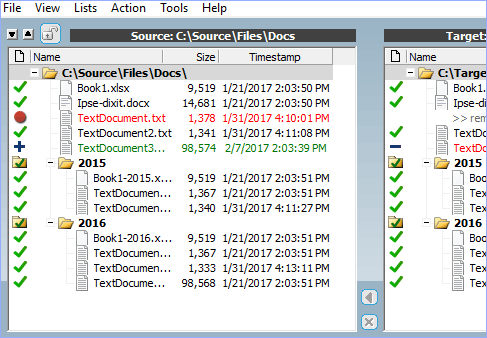
Step 3: Select 'Synchronization' as execution method (or Backup, or Replication) and then click the 'Execute' button.
Done! Your source and target folders are synchronized.
Note that all your settings can be saved to a file for the next time you start ViceVersa.
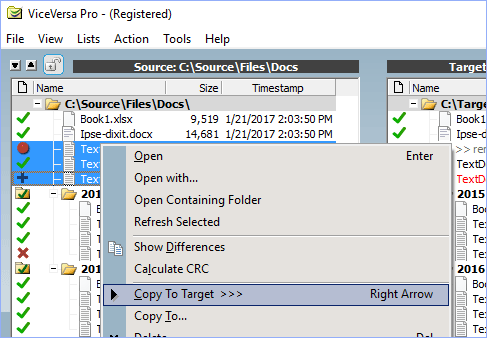
You can also copy / delete individual files or group of files by using the context menu (right mouse-button click over a file)
| Synchronize Files Between Computers Not Connected |
For computers that are not connected to a network, file synchronization can be achieved using a portable USB drive.
The objective is to synchronize files between a computer at home (Computer 1) and a computer at work (Computer 2), as shown in this illustration.
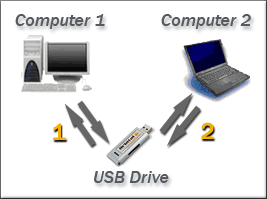
File synchronization is achieved in 2 steps:
- First synchronizing files on Computer 1 vs. a folder on the portable USB drive (1)
- Then using the USB drive at work and performing the same synchronization between the files Computer 2 and the same folder on the portable USB drive (2)
At the end of the process the same up-to-date files will be on both computers and on the USB drive, useful for backup purposes.
Steps 1 and 2 are repeated each time a synchronization is needed between the two computers.
| Uninstall ViceVersa |
You can remove ViceVersa like any other Windows program. The uninstall procedure will completely and cleanly remove ViceVersa from your computer.
Follow these steps:
Windows 11, Windows 10, Windows 8, Windows 7, Windows Vista, Windows Server 2022 / 2019 / 2016 / 2012 / 2008
- Close ViceVersa (and the VVLauncher scheduler if running).
- Go to the Start menu > Control Panel. (Learn how to access the Control Panel)
- Click Programs and Features.
- Double-click ViceVersa.
- Click Yes when asked to confirm that you want to uninstall ViceVersa.
- The uninstall procedure will completely and cleanly remove ViceVersa from your system.
Windows XP, Windows Server 2003, Windows Server 2000
- Close ViceVersa (and the VVLauncher scheduler if running).
- Go to the Start menu > Control Panel.
- Click Add or Remove Programs.
- Double-click ViceVersa.
- Click Yes when asked to confirm that you want to uninstall ViceVersa.
- The uninstall procedure will completely and cleanly remove ViceVersa from your system.
| Use ViceVersa to Mirror / Sync the Local OneDrive Folder to Another Location |
To mirror / copy / replicate / sync the local OneDrive folder to another location, make sure to enable the following options in the profile settings:
Do Not Copy File / Folder Data Streams
Option is in Profile Settings -> Advanced Settings -> Details
OneDrive adds some additional file streams to files and makes them inaccessible.
If you do not enable this option you might get the error: "Can not copy NTFS Additional File Streams of file "XXXXX". Function 'BackupWrite' returned error 395. Access to the cloud file is denied".
Include Offline Files
Option is in Profile Settings -> Advanced Settings -> More Settings
If there are some files in the OneDrive folder which are stored only in the cloud and not locally (i.e. they are 'offline'), then ViceVersa will exclude these files from copy because they are not present on the local disk. If you want to copy these offline files too, enable this option. The offline files will be downloaded to the local folder by OneDrive.
Exclude System Files
Option is in Profile Settings -> Folders -> File Filters
OneDrive adds a private and unique system file such as ".849C9593-D756-4E56-8D6E-AAA42412F" to the root folder and marks it as system and inaccessible. To avoid an error in ViceVersa, you can exclude this file from replication/synchronization by excluding all system files (or excluding the specific file name).